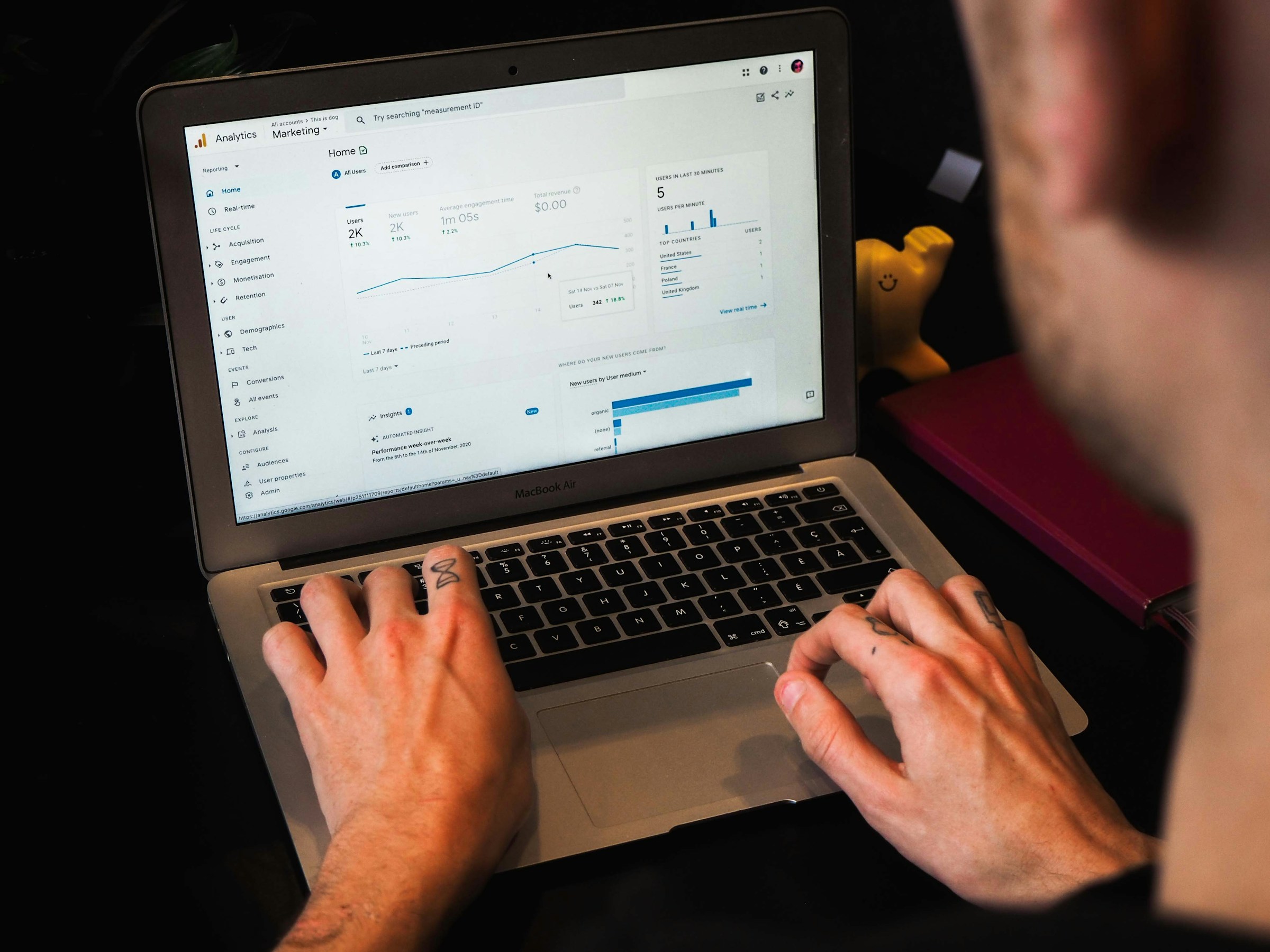
Most Shopify stores don’t have a traffic problem. They have a data problem.
Conversion rate optimization starts with clarity. You need to know where users drop off, which channels drive real revenue, and what actions signal buying intent.
Without accurate tracking, every change becomes a guess.
The move from Universal Analytics to Google Analytics 4 changed how e-commerce data works. GA4 is event-based. It tracks actions, not just sessions.
That shift matters because conversions happen through behavior, not pageviews.
Used correctly, GA4 shows you where money is leaking in your funnel. It highlights weak landing pages, checkout friction, device gaps, and underperforming traffic sources.
In this guide, you’ll learn how to set up GA4 properly for Shopify, which reports actually improve conversions, and how to turn raw data into clear CRO decisions.
What Is Google Analytics 4 (GA4)?
Google Analytics 4 (GA4) is Google’s current analytics platform built to track user behavior across websites and apps using an event-driven data model.
Unlike Universal Analytics, which focused on sessions and pageviews, GA4 centers on actions. That shift is critical.
Universal Analytics grouped activity into visits, which often hid meaningful behavior inside session averages.
GA4 records every interaction as an event—page_view, view_item, add_to_cart, begin_checkout, purchase—giving you granular visibility into how users move through your store.
Instead of asking, “How long was the session?” you can now ask, “What did the user actually do?” That change alone improves CRO decision-making. GA4 also handles cross-device tracking more effectively, uses machine learning to fill data gaps, and provides predictive metrics like purchase probability when enough data is available.
For e-commerce, this structure is superior because revenue is driven by sequences of actions, not isolated pageviews.
You can build funnels around real behaviors, segment users by engagement depth, and analyze drop-offs at each micro-step of the buying journey.
In short, GA4 does not just tell you how much traffic you received; it shows how that traffic behaved, where it stalled, and what actions correlate with sales.
That is the foundation of meaningful Shopify optimization.
Why GA4 Matters for Shopify CRO
Tracks Full Customer Journey
CRO depends on understanding the entire buying path, not isolated steps.
GA4 tracks users from first visit to final purchase using event-level data, which allows you to see how product views, add-to-cart actions, checkout starts, and purchases connect.
This removes blind spots between landing page performance and checkout completion. Instead of reviewing separate reports, you can analyze behavior as a sequence.
That sequence reveals friction. For example, if view_item rates are strong but add_to_cart is low, the issue is product page persuasion.
If add_to_cart is high but begin_checkout drops, pricing or shipping clarity may be the problem.
GA4 gives you the behavioral chain required to diagnose conversion gaps with precision.
Better Attribution Insights
Traffic sources do not contribute equally to revenue. GA4’s attribution modeling distributes credit across touchpoints rather than assigning all value to the last click by default.
This matters for paid ads, email flows, organic search, and social campaigns that assist conversions over time.
You can compare first-click, last-click, and data-driven attribution models to understand which channels initiate demand and which close sales.
That clarity protects profitable channels from being cut too early and exposes underperforming acquisition sources.
For Shopify CRO, this ensures you optimize the right traffic rather than simply optimizing pages in isolation.
Predictive Metrics (Purchase Probability, Churn Risk)
GA4 uses machine learning to identify patterns in user behavior when sufficient data is available.
It can estimate purchase probability and churn likelihood based on engagement signals.
These predictions are not assumptions; they are based on historical behavioral trends inside your property.
This allows you to build audiences of high-intent users and retarget them more aggressively, or identify at-risk customers before they disengage.
From a CRO standpoint, this shifts you from reactive analysis to proactive optimization. You are not just measuring what happened. You are anticipating what is likely to happen next.
Custom Funnel Tracking
Prebuilt reports rarely match your exact sales flow. GA4’s Exploration tools allow you to create custom funnels based on your Shopify events.
You can define each step—product view, add to cart, checkout start, shipping info, payment info, purchase—and measure drop-off between them.
This granular funnel view shows where revenue leakage occurs. More importantly, it helps you prioritize tests based on financial impact.
If 40% of users exit between shipping and payment, that is a higher-value optimization target than a minor landing page tweak.
Custom funnels align testing efforts with measurable revenue gaps.
Cross-Device Tracking Advantages
Customers often browse on mobile and purchase on desktop, or vice versa. Traditional session-based tracking struggles to connect these interactions.
GA4 improves cross-device measurement through Google Signals and user-ID tracking, allowing you to better understand how users move across devices before converting.
This prevents underreporting of assisted channels and clarifies true device performance.
For Shopify stores, this insight prevents misjudging mobile as “low converting” when it may simply be initiating demand.
Accurate cross-device data ensures CRO decisions reflect real behavior, not fragmented tracking.
How to Properly Set Up GA4 for Shopify
Correct setup determines data quality. If tracking is incomplete or duplicated, every report becomes unreliable.
Below is the structured implementation process that ensures clean e-commerce data for CRO decisions.
1. Create a GA4 Property
Start inside your Google Analytics account and create a new GA4 property. This generates a Measurement ID (formatted as G-XXXXXXXXXX). That ID connects your Shopify store to GA4.
Set your correct time zone and currency during setup. Revenue reporting depends on this configuration. If it’s wrong, attribution and performance comparisons will be distorted.
Once the property is live, confirm that Web Data Stream tracking is enabled. This activates automatic event tracking, like page_view and session_start.
2. Connect GA4 to Shopify
There are three reliable connection methods. The best choice depends on your store’s technical complexity and tracking needs.
Via Google & YouTube App (Recommended for Most Stores)
Install the official Google & YouTube app inside Shopify. Connect your Google account and select your GA4 property.
This method automatically installs base tracking and ecommerce events with minimal manual work.
It reduces setup errors and is suitable for most stores that do not require advanced custom tracking.
Via Google Tag Manager (Best for Advanced Tracking)
Google Tag Manager (GTM) provides more control. You install the GTM container in Shopify, then deploy the GA4 configuration and event tags inside GTM.
This method allows custom events, advanced triggers, and better integration with other tools.
It’s ideal if you plan to run detailed CRO experiments or track micro-conversions like button clicks and scroll depth.
Direct gtag Installation (Manual Setup)
You can manually paste the GA4 global site tag (gtag.js) into your Shopify theme’s section.
This works, but it offers less flexibility than GTM and requires manual event configuration for advanced tracking.
It’s suitable only if you want a lightweight implementation and understand how to manage event scripts.
3. Enable Enhanced E-commerce Tracking
For CRO, e-commerce events are mandatory. Without them, you cannot build meaningful funnels.
Ensure the following key events are firing:
- View Item – Triggered when a user views a product page. This measures product interest.
- Add to Cart – Triggered when a product is added to the cart. This measures buying intent.
- Begin Checkout – Triggered when a user starts checkout. This identifies friction before payment.
- Purchase – Triggered after a successful transaction. This records revenue and conversion data.
These events create the behavioral chain needed for funnel analysis.
Missing even one step breaks your ability to diagnose drop-offs accurately.
4. Verify Events Are Firing Correctly
Never assume tracking works. Verify it.
DebugView
Inside GA4, use DebugView to test events in real time. Perform actions on your store—view a product, add to cart, initiate checkout, and confirm that each event appears with the correct parameters.
Check revenue values, currency, and item IDs. Incomplete parameters lead to reporting gaps later.
Real-Time Reports
Use the Real-Time report to confirm live user activity. This validates that your tracking works outside debug mode.
Compare test transactions in GA4 against Shopify order data. Small discrepancies are normal due to attribution modeling, but large differences indicate implementation errors.
Essential GA4 Reports for Shopify CRO
Data only improves conversions when it leads to decisions. These GA4 reports isolate revenue drivers, friction points, and performance gaps that directly impact Shopify’s growth.
1. Conversion Report
The Conversion report confirms whether purchase tracking is functioning correctly and shows how revenue is distributed across channels.
Your primary focus here is the purchase event. Monitor total conversions, total revenue, and revenue per user. These metrics validate campaign efficiency and overall store health.
Next, segment revenue by traffic source. Compare organic search, paid ads, email, referral, and direct traffic. Look beyond conversion rate.
Evaluate revenue contribution and average order value per channel. Some sources convert lower but drive higher-value customers. Others generate volume without profitability.
This report answers a core question: Which channels generate actual revenue, not just traffic? Optimize acquisition around revenue performance, not vanity metrics.
2. Funnel Exploration
Funnel Exploration provides the clearest view of revenue leakage. Build a funnel using these steps:
View Product → Add to Cart → Begin Checkout → Purchase
This structure mirrors your Shopify buying process.
Measure completion rates between each stage. A strong product view rate with a weak add-to-cart suggests offer or messaging issues.
A high add-to-cart rate but low checkout initiation points to pricing, shipping clarity, or trust gaps. A checkout drop-off signals payment friction or unexpected costs.
Quantifying drop-off percentages allows you to prioritize experiments by impact. You are no longer guessing where to optimize. You are targeting the largest conversion bottleneck.
3. Path Exploration
Path Exploration reveals how users actually move through your store before converting or exiting. Unlike funnels, paths are not predefined. They show real behavioral flows.
You may discover users visiting FAQs before checkout. Or repeatedly bouncing between product variants. Or exiting after viewing shipping information.
These patterns expose hesitation. If users frequently navigate to return policies before purchasing, strengthen trust signals earlier in the journey.
If they loop between cart and product pages, review pricing clarity or bundle logic.
Path analysis transforms behavioral noise into strategic adjustments.
4. Landing Page Performance
Your landing page determines buying momentum. In GA4, analyze performance by entry page and compare conversion rates across them.
Focus on sessions that begin on product pages versus collections versus blog posts. Some pages attract traffic but fail to convert. Others convert efficiently despite lower volume.
Identify high-traffic, low-conversion landing pages first. These offer the highest upside.
Improving conversion on a top entry page by even 0.5% can significantly increase total revenue.
Landing page analysis ensures you optimize the front door of your store, not just the checkout.
5. Device & Traffic Source Analysis
Device segmentation often reveals overlooked gaps. Compare mobile and desktop conversion rates.
If mobile traffic dominates but underperforms, review page speed, layout clarity, button visibility, and checkout usability.
Do not assume mobile users have lower intent. Often, friction is technical, not behavioral.
Next, evaluate traffic source performance within each device category.
Paid social may drive strong mobile engagement but weak desktop results. Organic search may perform better on desktop.
This layered analysis prevents broad assumptions. It ensures optimization efforts align with how users actually access and experience your Shopify store.
Key GA4 Metrics That Actually Improve Conversions
- Engagement Rate
Measures the percentage of sessions where users actively interact with your store. Low engagement often signals weak landing pages, slow load times, or mismatched traffic intent. Improving engagement strengthens the top of your conversion funnel. - Add-to-Cart Rate
Shows the percentage of product viewers who add an item to their cart. This metric reflects product page effectiveness, pricing clarity, offer strength, and trust signals. A low rate points directly to persuasion gaps. - Checkout Completion Rate
Measures how many users who start checkout actually finish the purchase. This exposes friction in shipping costs, payment options, form complexity, or unexpected fees. Optimizing this stage directly increases revenue without increasing traffic. - Revenue Per User (RPU)
Calculates total revenue divided by total users. This metric combines conversion rate and average order value into one performance indicator. It helps you evaluate traffic quality and prioritize high-value channels. - Average Purchase Revenue (Average Order Value)
Tracks the average amount spent per transaction. Increasing this through bundles, upsells, or free shipping thresholds improves profitability without raising acquisition costs. - Customer Acquisition Cost (CAC)
When paired with ad platform data, CAC shows how much you spend to acquire each customer. Compare this against revenue per user and average order value to determine profitability. Sustainable growth requires CAC to remain below customer value.
How to Use GA4 Data to Run Better CRO Tests
Identify High-Traffic, Low-Converting Pages
Start where impact is highest. In GA4, review landing page reports and sort by sessions. Then compare the conversion rate and revenue per user for those pages.
A page with high traffic and a below-average conversion rate is a leverage point. Small improvements there produce meaningful revenue gains.
Avoid testing low-traffic pages first. Optimization should follow volume. If a page influences a large percentage of users, it deserves priority.
Use Funnel Drop-Off Data to Form Hypotheses
Open Funnel Exploration and examine percentage drop-offs between each stage: product view, add to cart, begin checkout, and purchase. Identify the largest conversion gap.
That gap becomes your testing focus. For example, if 60% of users abandon between add to cart and checkout start, your hypothesis may involve improving cart clarity, reinforcing shipping transparency, or strengthening urgency messaging.
Every test should solve a defined friction point. GA4 provides the evidence. Your experiment addresses the cause.
Segment by Device Before Testing
Do not treat traffic as uniform. Segment funnel and landing page reports by device category. Mobile behavior often differs from desktop.
A low overall conversion rate may be driven entirely by mobile friction.
If that is the case, design mobile-specific experiments such as simplified layouts, clearer call-to-action buttons, or faster checkout flows.
Testing without segmentation risks solving a problem that only affects a small portion of users. Segmentation ensures precision.
Prioritize Tests Based on Revenue Impact
Not all improvements carry equal value. Estimate potential lift by combining traffic volume, current conversion rate, and average order value.
A small improvement on a high-revenue page outweighs a large improvement on a low-impact page.
Use revenue per user and purchase data to model expected gains before launching a test.
This approach shifts CRO from random experimentation to strategic investment. You are allocating effort where financial return is highest.
Measure Experiment Success Properly
Once a test is live, define the primary success metric before analyzing results. For most Shopify stores, this is the purchase conversion rate or revenue per user.
Avoid judging success based on engagement metrics alone. Run the test long enough to collect statistically meaningful data and account for weekly traffic patterns.
After completion, compare results against baseline performance using consistent attribution settings.
A valid win improves revenue metrics, not just clicks or pageviews. GA4 supplies the measurement framework. Your discipline ensures accurate interpretation.
Custom Events & Advanced Tracking for Shopify
- Tracking Scroll Depth
Scroll tracking measures how far users move down a page. If most visitors never reach key product details, reviews, or FAQs, the issue may be layout structure or weak above-the-fold messaging. Tracking 25%, 50%, 75%, and 100% scroll thresholds helps you identify content visibility gaps that affect conversion decisions. - Tracking Button Clicks
Button click tracking reveals intent before a formal conversion event occurs. Monitor clicks on “Add to Cart,” size guides, shipping info, or sticky CTA buttons. If clicks are high but add-to-cart rates remain low, friction may exist after interaction. - Tracking Coupon Usage
Monitoring coupon application behavior shows how discounts influence buying decisions. Track when users enter a promo code, abandon after applying it, or complete a purchase with it. - Tracking Upsell Interactions
Upsell tracking measures engagement with product bundles, post-purchase offers, or cart add-ons. Track impressions and acceptance rates of upsell offers. If impressions are high but acceptance is low, the offer may lack relevance or pricing alignment.
Creating Custom Conversion Events
Custom conversion events allow you to define high-value actions beyond standard e-commerce tracking and treat them as measurable goals inside GA4.
Using Google Tag Manager or GA4 event configuration, you can create events for actions such as clicking a financing option, subscribing to back-in-stock alerts, interacting with a product quiz, or reaching a key checkout step like shipping information submission.
After defining the event, mark it as a conversion inside GA4, so it appears in reporting and attribution models.
This ensures assisted actions are evaluated alongside purchases, not ignored.
Custom conversions are especially valuable for longer buying cycles or high-ticket products where micro-commitments signal strong intent before the final transaction.
Properly structured custom events expand your visibility beyond completed orders and allow you to optimize earlier decision points that influence revenue outcomes.
Common GA4 Mistakes Shopify Stores Make
Not Setting Purchase as a Conversion
The purchase event must be marked as a conversion inside GA4. If it is not, your reports will not prioritize revenue correctly in attribution models or conversion summaries.
This leads to misleading channel comparisons and weak optimization decisions. Always confirm that the purchase event is toggled as a key event in GA4 settings.
Without this step, you are analyzing activity, not performance.
Double-Counting Revenue
Revenue duplication is a common implementation error.
It often happens when GA4 is installed through multiple methods at the same time, such as the Google & YouTube app combined with manual gtag installation or Google Tag Manager.
When this occurs, purchase events fire twice, inflating revenue and conversion numbers. Compare GA4 revenue with Shopify’s backend order data regularly.
If GA4 consistently reports higher revenue than Shopify, investigate duplicate tags immediately.
Ignoring Attribution Settings
GA4 allows you to choose attribution models, including data-driven and last-click models. If you ignore this setting, you may misinterpret channel performance.
For example, paid social may introduce customers while search closes the sale. Under last-click attribution, search appears stronger than it actually is.
Review attribution settings in your property and understand how credit is distributed. Channel optimization should reflect the full customer journey, not a single touchpoint.
Not Filtering Internal Traffic
Store owners and team members frequently visit their own website. Without internal traffic filters, this activity inflates engagement metrics and distorts funnel data.
GA4 allows you to define internal IP addresses and exclude them from reporting. Implement this filter early.
Clean behavioral data depends on excluding non-customer activity. Otherwise, optimization decisions may be based on artificial engagement patterns.
Overcomplicating Reports
GA4 offers extensive customization, but complexity does not equal clarity. Many stores build detailed explorations without defining a clear question first.
This leads to data overload and slow decision-making. Start with revenue-focused metrics: purchase rate, revenue per user, and funnel drop-offs. Expand analysis only when necessary.
CRO depends on actionable insight, not dashboards filled with unused metrics. Simplify reporting so every chart answers a specific performance question.
GA4 + Shopify Apps: What You Should Know
Does Shopify Auto-Track Ecommerce Events?
Shopify can send basic e-commerce data to GA4 when connected through the official Google & YouTube app.
This typically includes core events such as product views, add-to-cart actions, checkout starts, and purchases. For many stores, this covers essential revenue tracking.
However, auto-tracking does not guarantee full visibility into custom behaviors or micro-conversions.
If you rely only on default events, you may miss important signals like upsell clicks, subscription selections, or key checkout interactions.
Always verify which events are firing inside GA4. Do not assume completeness.
When to Use Google Tag Manager
Google Tag Manager becomes valuable when your tracking needs go beyond standard e-commerce events.
If you plan to run structured CRO experiments, track advanced button clicks, monitor scroll depth, or send custom parameters with events, GTM offers greater control.
It centralizes tracking logic in one container instead of spreading scripts across apps and theme files. This reduces conflicts and simplifies updates.
For scaling stores with multiple tools and ad platforms, GTM creates a cleaner tracking architecture.
Compatibility with CRO Tools
Most CRO tools, such as A/B testing platforms, personalization engines, and heatmap software, operate independently from GA4 but influence the data GA4 collects.
For example, if a testing tool dynamically modifies product pages, GA4 must still capture consistent events across variations.
Ensure that event triggers are tied to user actions, not static page elements that may change during tests.
Before launching experiments, confirm that conversion events fire correctly for every variation. Data accuracy must remain stable even when the experience changes.
Ensuring Clean Data Across Apps
Multiple Shopify apps can introduce duplicate scripts, overlapping tracking pixels, and conflicting event triggers.
This is one of the most common causes of inflated revenue or inconsistent attribution reporting. Conduct periodic audits of installed apps and tracking methods.
Confirm that each purchase event fires once and only once. Align naming conventions for custom events so reports remain consistent.
Clean data depends on disciplined implementation. If tracking is fragmented across apps, your optimization decisions will be fragmented as well.
Final Verdict
GA4 is a strong foundation for Shopify CRO. It shows where users drop off, which channels drive revenue, and which pages underperform.
If implemented correctly, it gives you the clarity needed to make informed decisions instead of guesses.
However, GA4 measures behavior. It does not explain why users behave a certain way.
When you need deeper insight into user intent, tools like heatmaps and A/B testing platforms become necessary.
They help you validate hypotheses and refine messaging with controlled experiments.
If you are just starting, focus on three steps: ensure purchase tracking is accurate, build a clear funnel exploration, and identify your highest-traffic low-converting page.
Optimize that first.
Clean data. Clear hypothesis. Measured test. Repeat the process. That is how you turn analytics into consistent Shopify growth.
FAQs
Is GA4 free for Shopify stores?
Yes. GA4 is free to use for most Shopify stores. You only pay if you require enterprise-level features under Google Analytics 360.
Do I need Google Tag Manager?
No, but it is recommended for advanced tracking. If you only need standard e-commerce events, Shopify’s native integration is usually enough.
How long does it take to get reliable data?
You can review directional insights within a few days. For reliable optimization decisions, aim for at least 2–4 weeks of consistent traffic data.
Why does GA4 data not match Shopify exactly?
Differences occur due to attribution models, cookie consent, ad blockers, and cross-device tracking. Small gaps are normal. Large discrepancies usually signal tracking issues.
What is a good e-commerce conversion rate?
Most Shopify stores convert between 1% and 3%. High-performing stores often reach 3%–5% or more, depending on niche, traffic quality, and pricing.

Ethan Caldwell is a Shopify conversion optimization researcher who focuses on structured testing frameworks, product page improvements, and data-driven eCommerce performance strategies. His work emphasizes practical implementation and long-term store optimization rather than quick-fix tactics.